

Manual · Version 1.0
How it works: morements.
Most of it explains itself in the first five seconds. The rest is here: every screen, every setting and the data format for anyone who wants to build on their entries.
Getting started
morements is a microjournal: a place to write down what's happening in a line or two, at the moment it happens, and find it again later. Version 1.0 runs on the iPhone with iOS 18 or later.
There is no account and no setup. After the first launch the app sits in the Capture tab, the cursor blinks, the keyboard is up. It stays that way: every fresh start lands there again, wherever you were last.
The four sections
- Capture
- The input field. Every entry starts here.
- Journal
- All entries with a mood, grouped by day, with search.
- Flood
- The quick one-liners without a mood, week after week as one chain.
- Settings
- Appearance, iCloud, location, voice notes, webhook, export, reminder.
Permissions
morements asks for a permission only when you first use the feature: for location when the input field first opens, for microphone and speech recognition at the first recording, for the camera at the first photo, for notifications when you switch on a reminder. You can deny each of them. Everything else keeps working — details under Permissions.
Capture
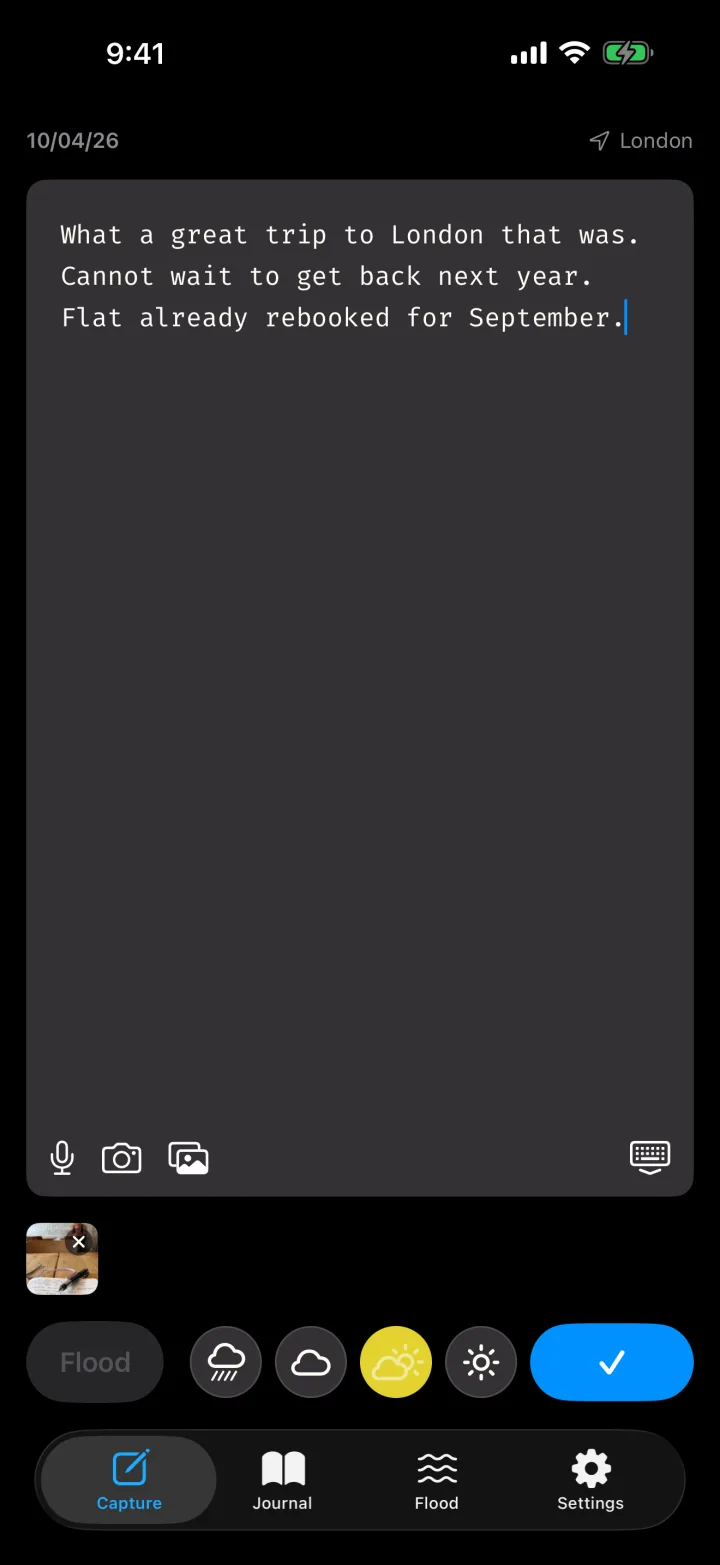
An entry is text, a voice recording, photos or videos — in any combination — plus a mood. Time, time zone and place come along by themselves.
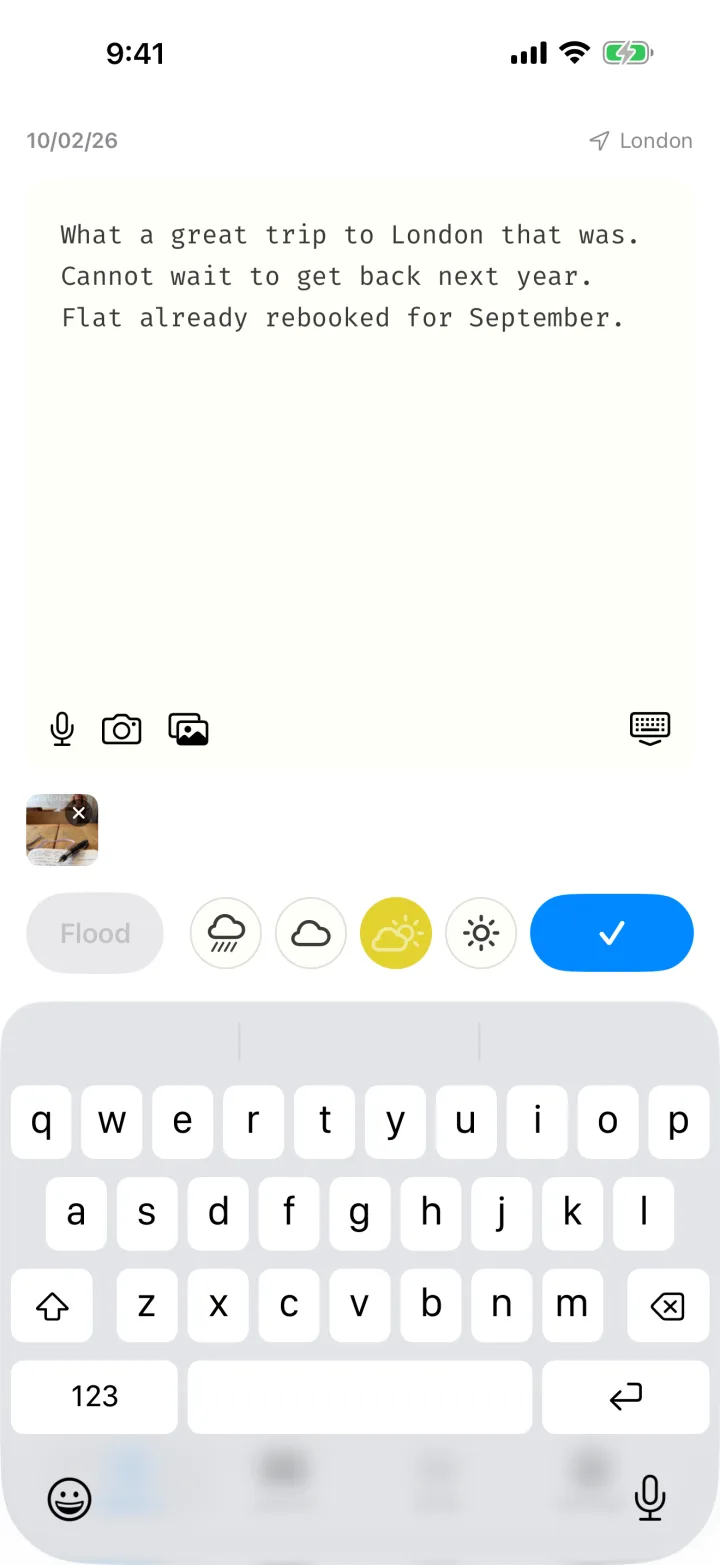
The screen
- Top left is today's date, top right the place: first "searching …", then the name that was found, or "no location" when access is missing.
- The sheet is the input field. It reads "What's happening?" while it is empty.
- Along the bottom of the sheet sit microphone, camera and photo library. On the right, the keyboard symbol puts the keyboard away — that reveals the tab bar.
- Below the sheet attached media appear as small previews. The × removes an attachment again.
- The bar underneath: Flood on the left, then the four moods, the check mark that saves on the right.
Saving
The check mark becomes active once two things are there: content (text, a recording or an attachment) and a mood. No mood is preselected. After the tap there is a short haptic confirmation, the sheet is empty again and the cursor blinks for the next thought. No dialog, nothing to dismiss.
Saving waits for nothing — not for a GPS fix, not for transcription, not for the network, not for iCloud. Whatever arrives later is added to the saved entry.
Voice note
- Tap the microphone. Recording runs, the button turns into a red stop surface with the elapsed time and a level meter.
- Tap again to finish. The recording now sits below the sheet as an attachment.
- Pick a mood and save. Transcription then runs by itself, on the device.
Typed text stays — a recording adds to it, it never replaces it. If you save while the recording is still running, it is stopped and belongs to the entry. If a call comes in, nothing is lost: the recording up to that point is kept.
Photos and video
The camera shoots directly, the photo library brings in what exists — up to ten pictures or videos at a time. One entry can carry several attachments.
Place and time
As soon as the input field appears, morements looks for the location once — while you write, not when you save. Accuracy is deliberately around a hundred metres: enough to answer "where was I", light on the battery and quick. If the location arrives shortly after saving, it is filled in; after 15 seconds the search gives up. An entry without a location is a valid entry.
Every entry also remembers the time zone it was written in. On a trip the journal therefore shows the time there, not the time at home.
Mood
Four steps, deliberately without a middle. A neutral middle would be the answer you always pick. Weather instead of faces: a state that passes, not a verdict on you.
| Step | Symbol | Color in the journal |
|---|---|---|
| Rough | rain cloud | red |
| Meh | cloud | orange |
| Good | sun behind a cloud | yellow |
| Great | sun | green |
The mood belongs to the moment and cannot be changed later — neither can time and place. A journal is not a calendar.
The Flood
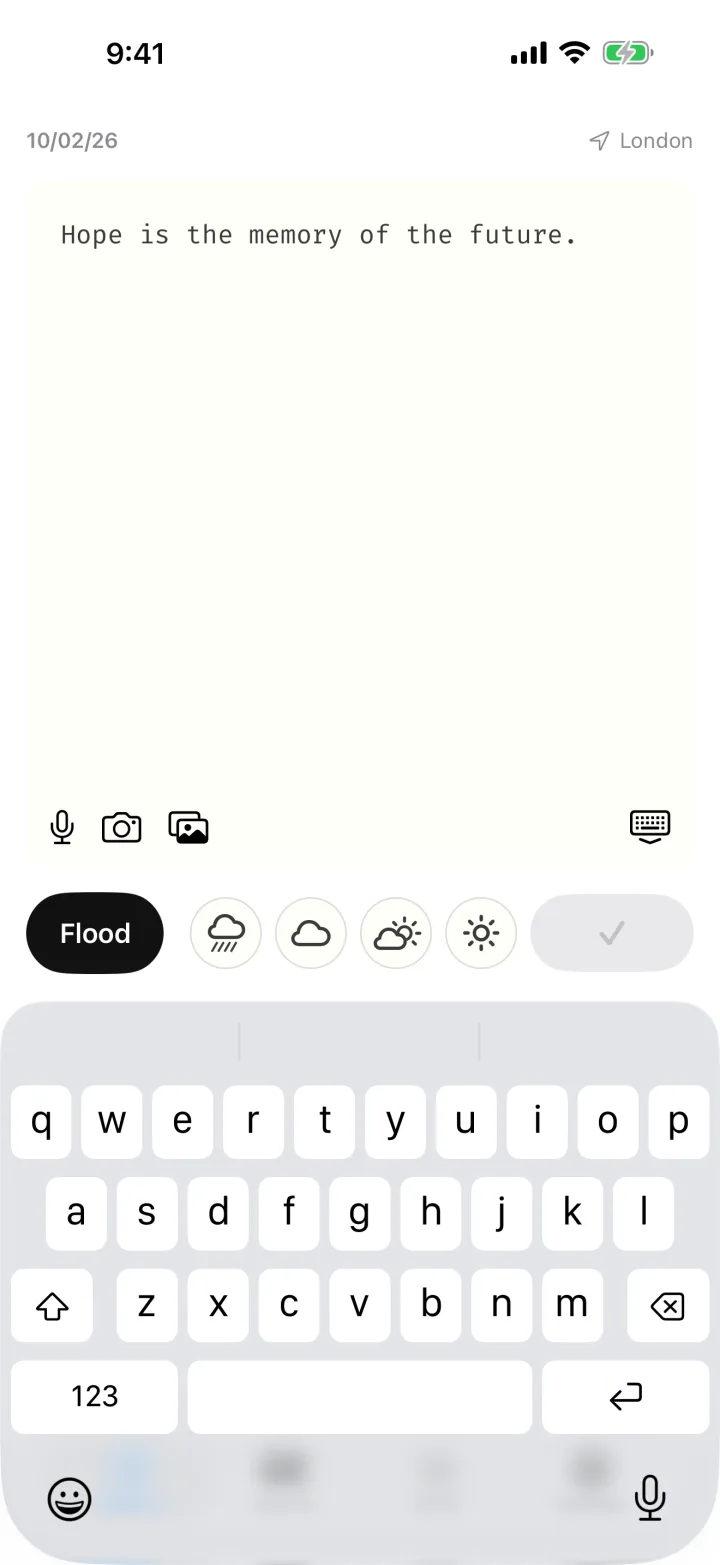
Some thoughts are one line long and have no mood. That is what the Flood is for: write, tap Flood, done.
What may go into the Flood
- One line. Any length, several sentences even — but no line break. A second line is a second thought.
- Text only. No photo, no video, no recording.
- No mood.
The button shows whether the draft fits: it is black when the note can go into the Flood, and grey as soon as a line break or an attachment is added or a recording is running.
The Flood tab
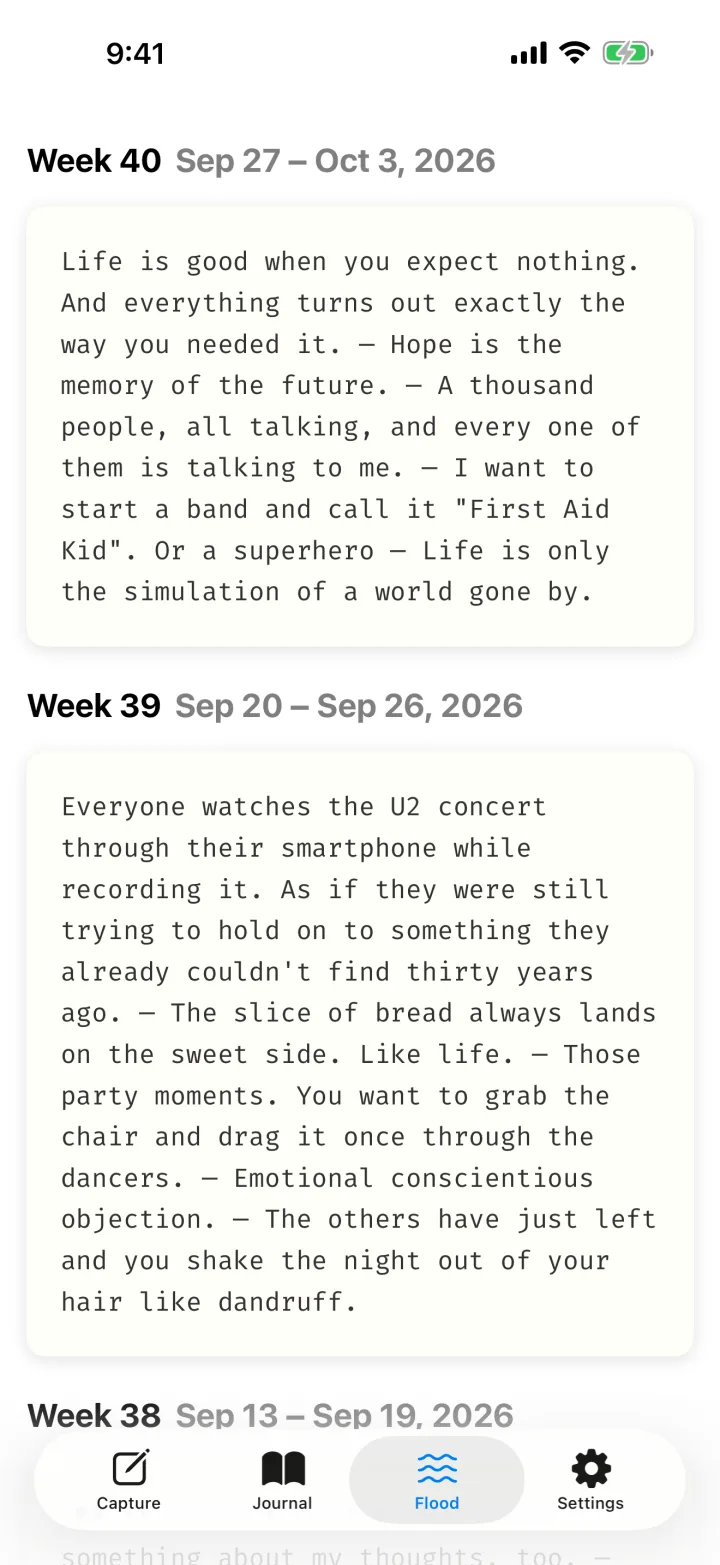
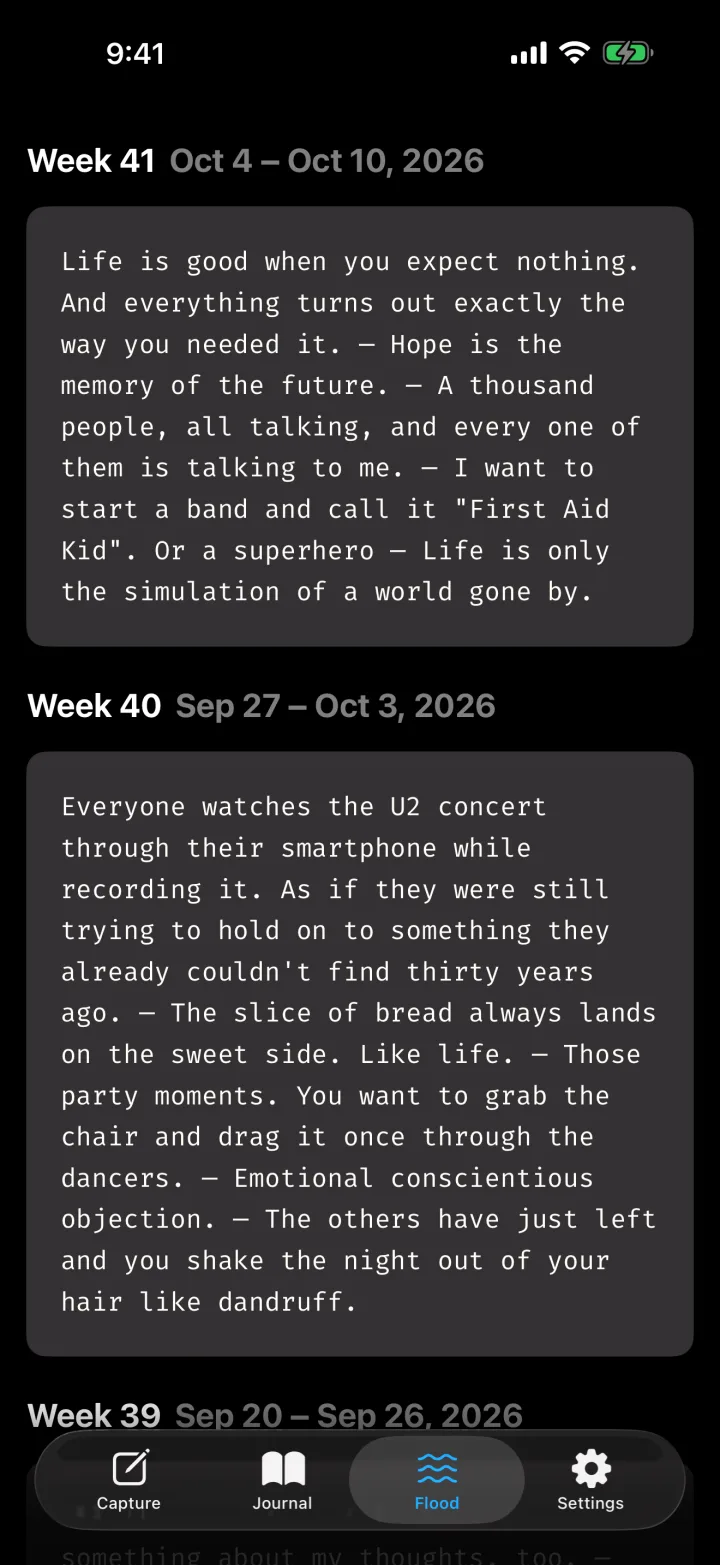
Every calendar week gets one card. It holds all notes of that week in the order they were written, joined by dashes — a whole week reads as one chain. The newest week is on top.
Flood notes keep to themselves: they appear neither in the journal nor in its search.
Journal
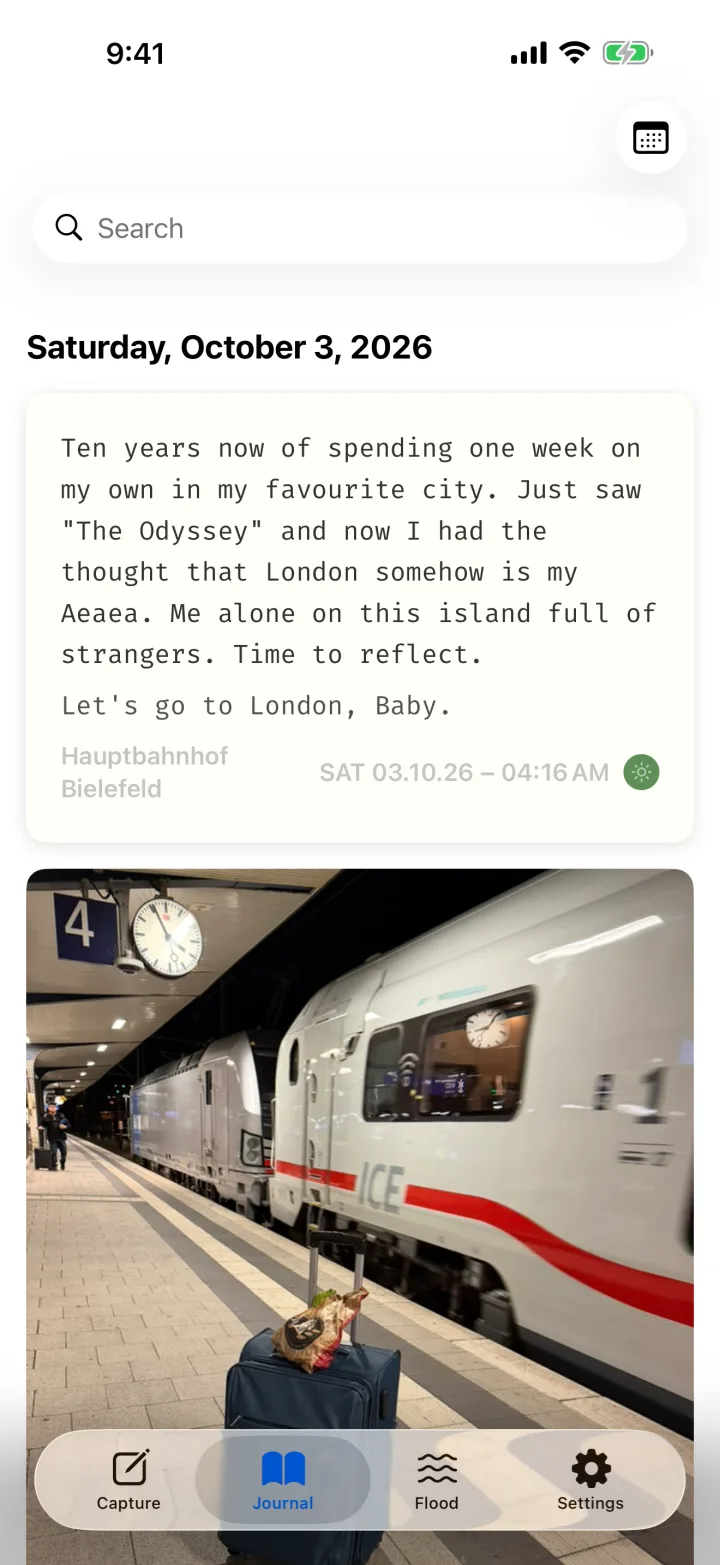
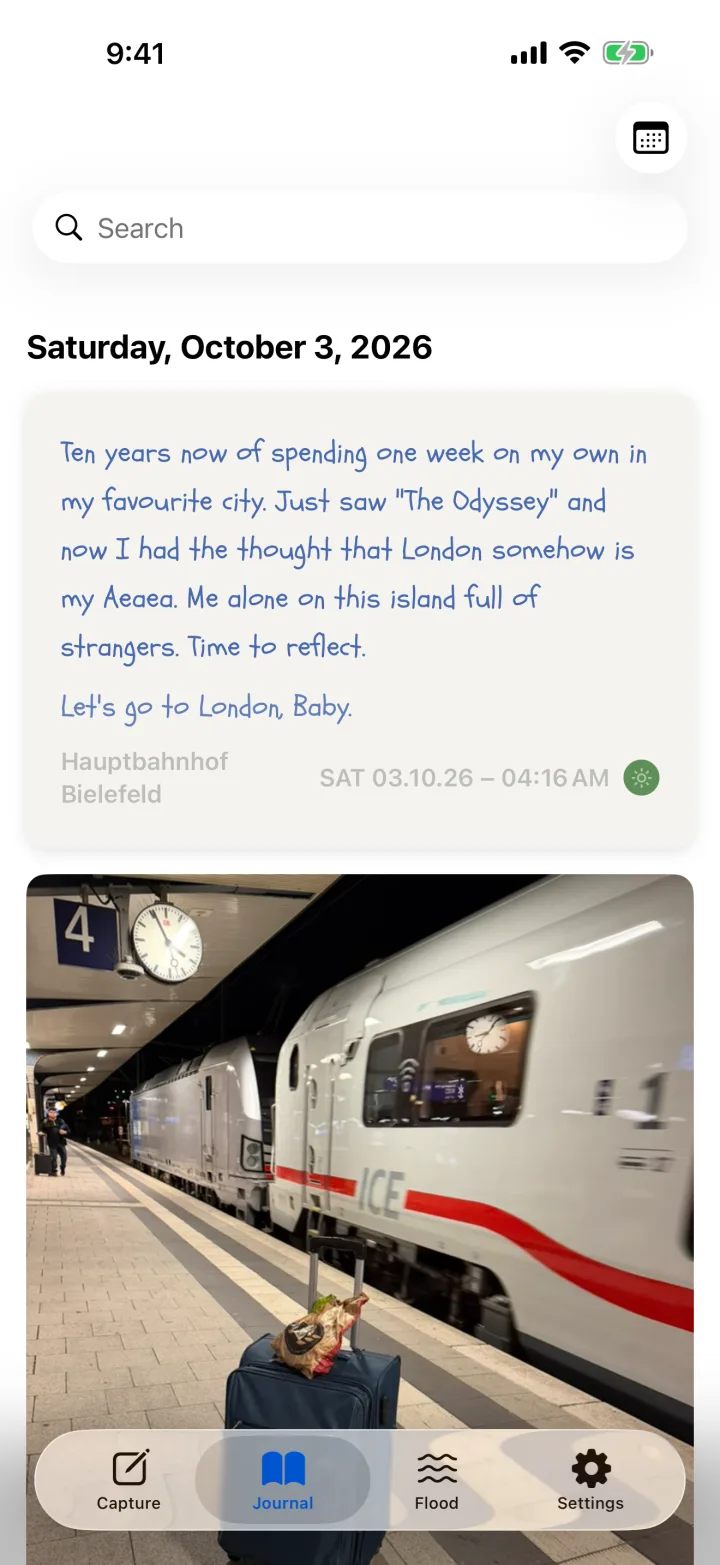
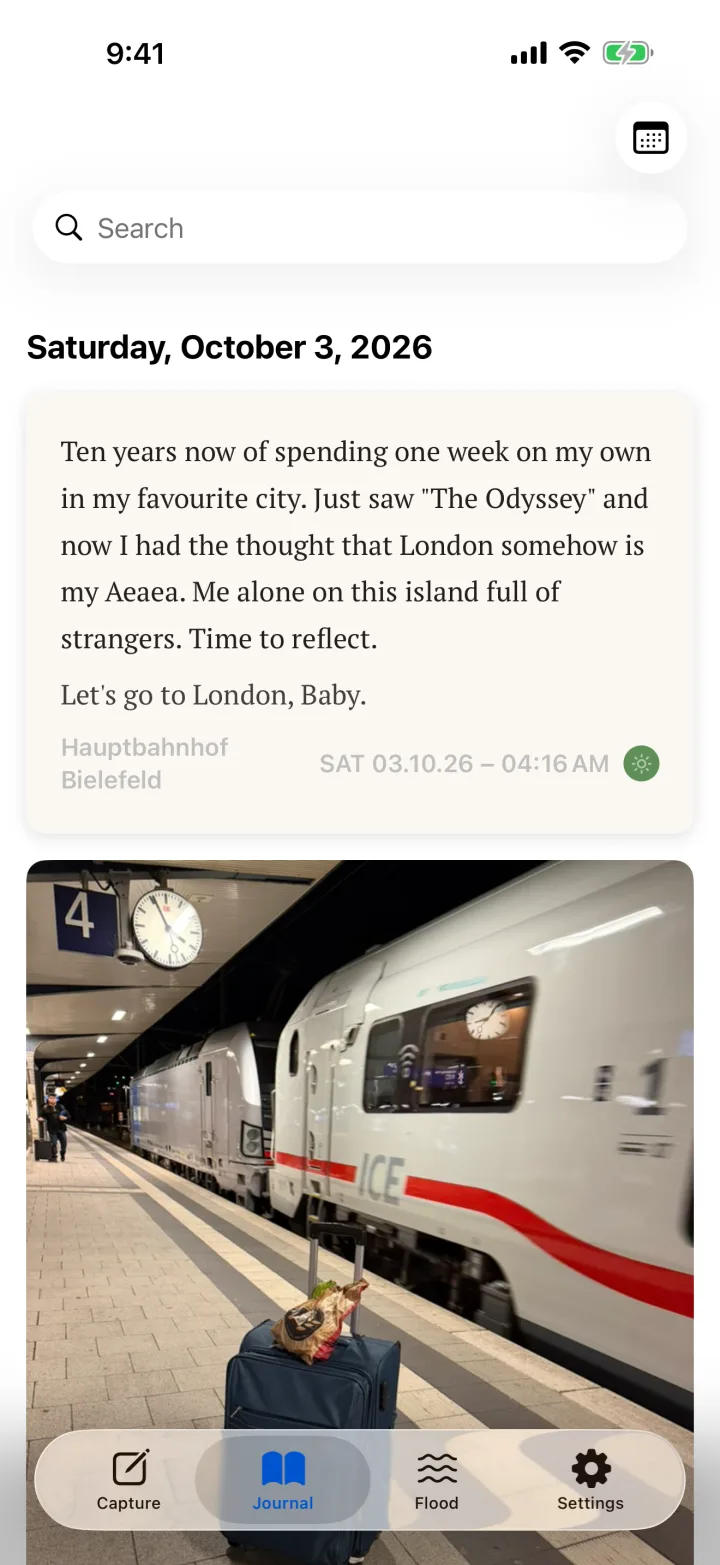
The journal shows all entries with a mood, newest first, under one date line per day. It only shows days that have something on them — no gaps, no streaks, nothing to catch up on.
A card
- The whole text, in your style.
- Transcripts of voice notes, in italics. Recordings without a transcript and videos show as a small symbol with their duration.
- Bottom left the place, bottom right weekday, date and time — in the time zone the entry was written in — and the mood dot.
- Photos hang below the card: one at full width, two or three side by side, four or more as a row to swipe through. A tap on a tile shows the photo large.
A tap on the card opens the entry.
Jumping to a date
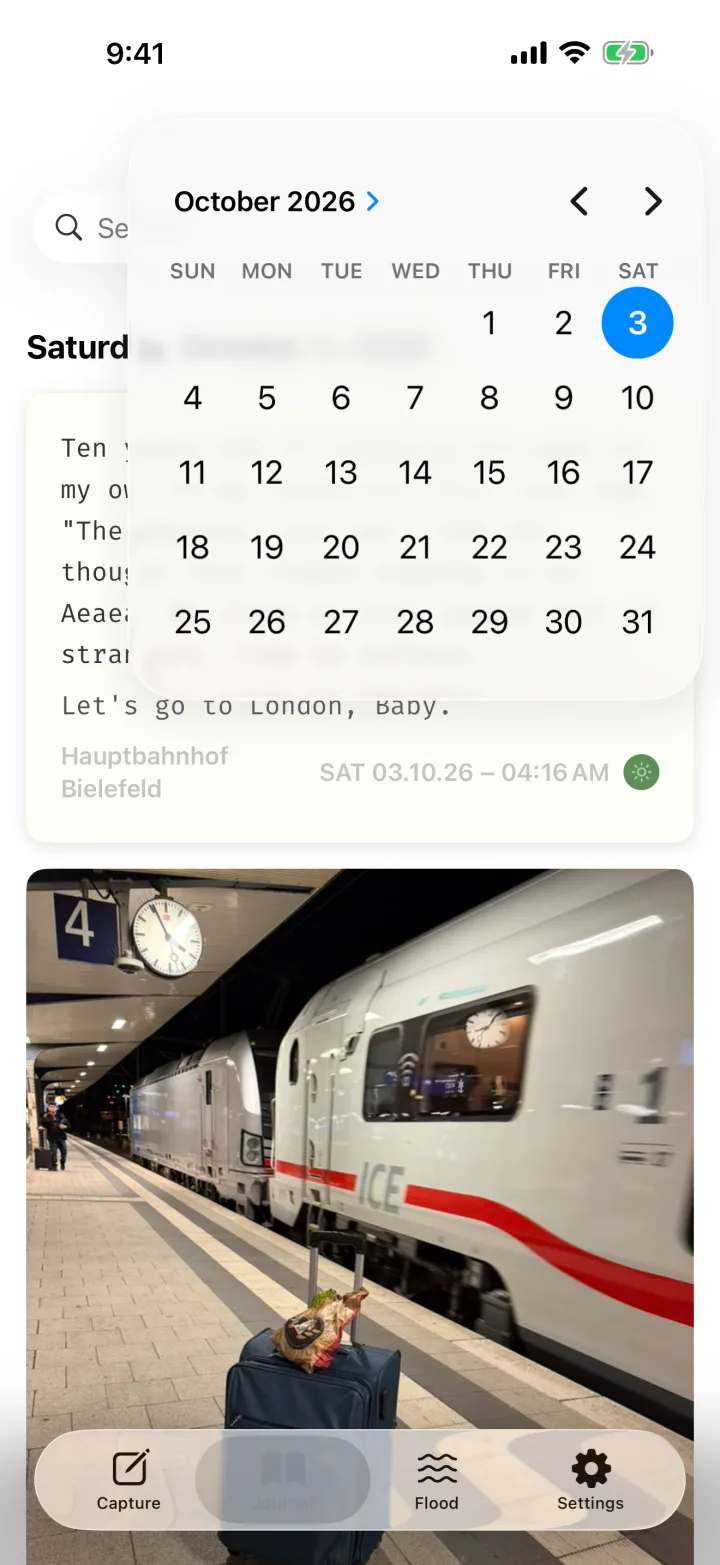
The calendar button top right opens a month calendar. A tap on a day scrolls to the newest entry on or before that day.
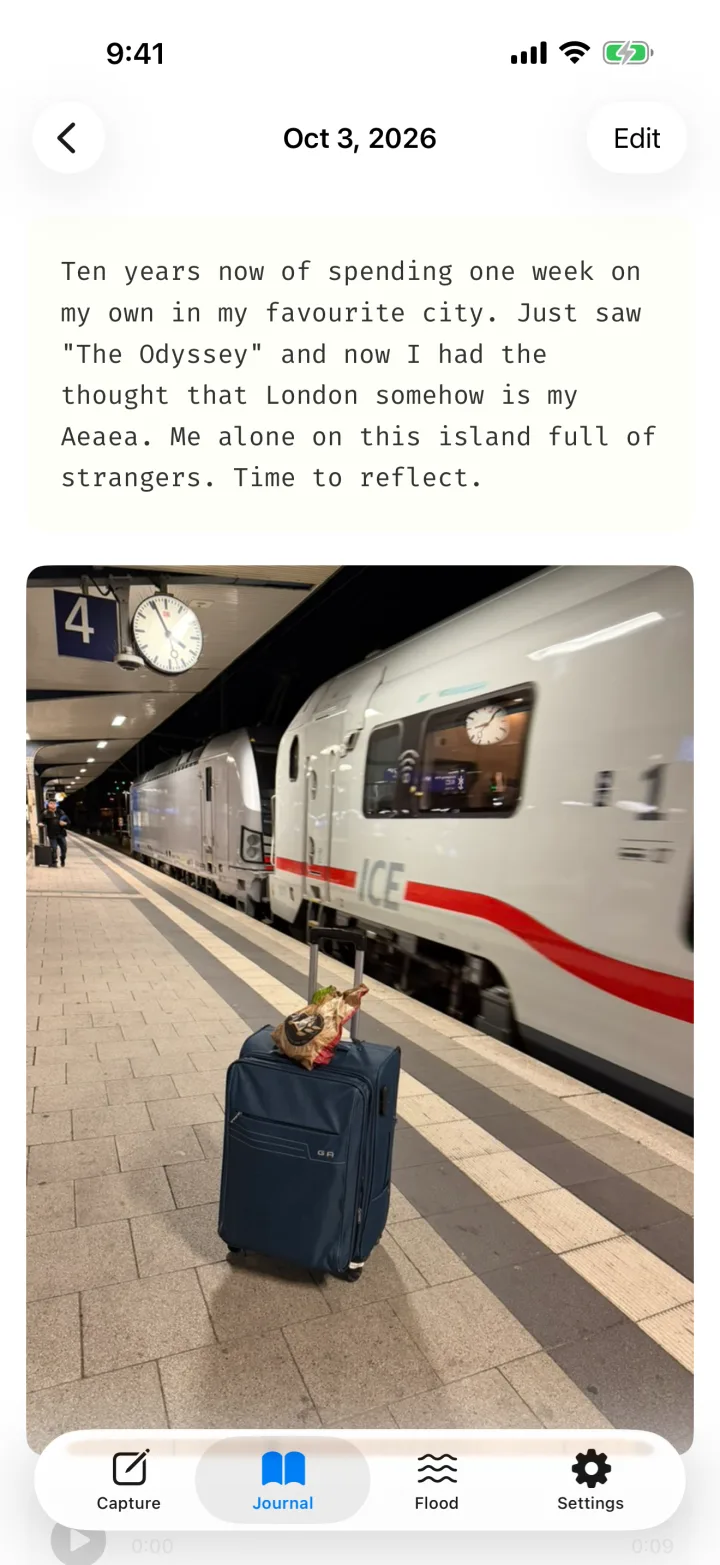
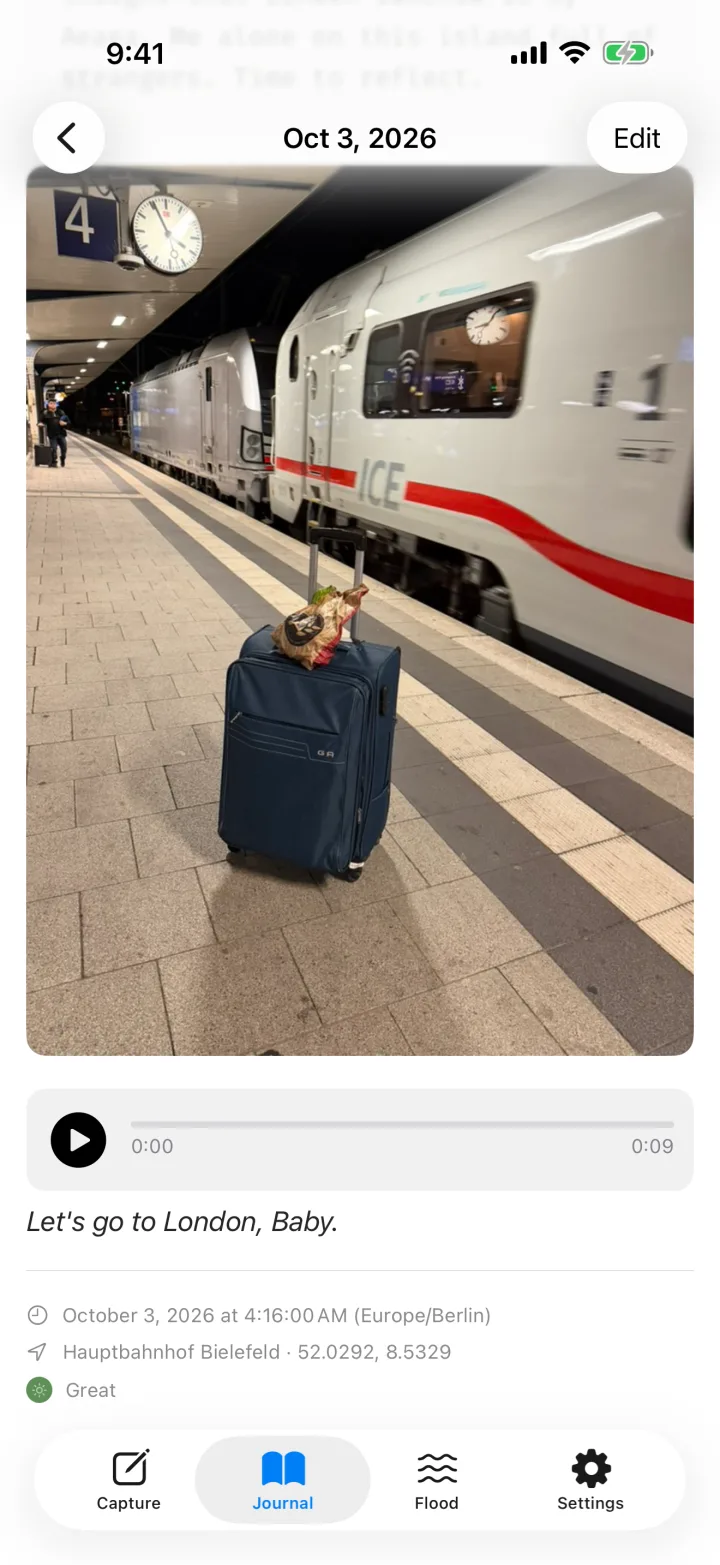
One entry in full
The detail view shows everything about an entry: the full text, photos at full width, videos, the player for the voice note with its progress and the transcript below. At the end come date and time with time zone, the place with coordinates and the mood in words.
Edit top right makes the text editable, Done saves it. Only the text can be edited; time, place and mood are frozen.
Deleting
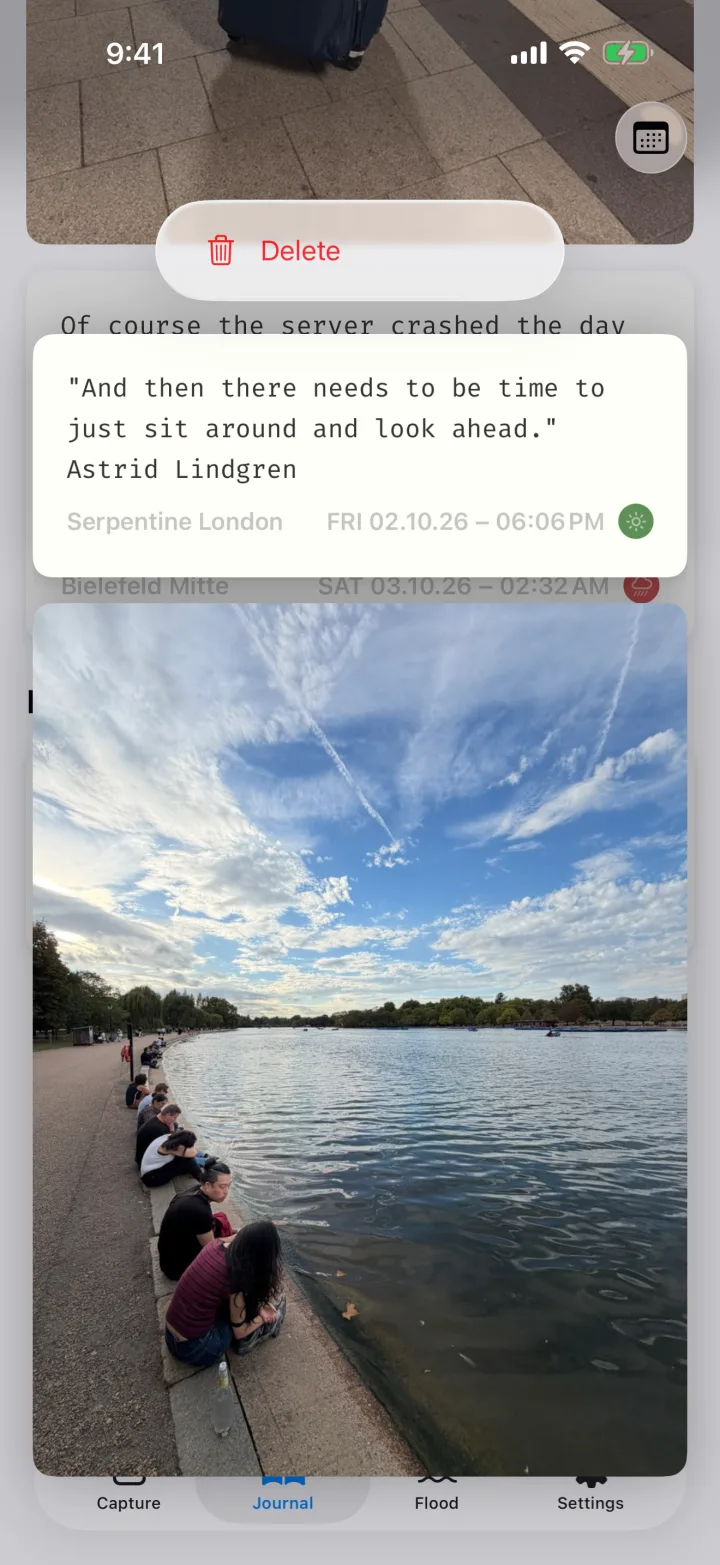
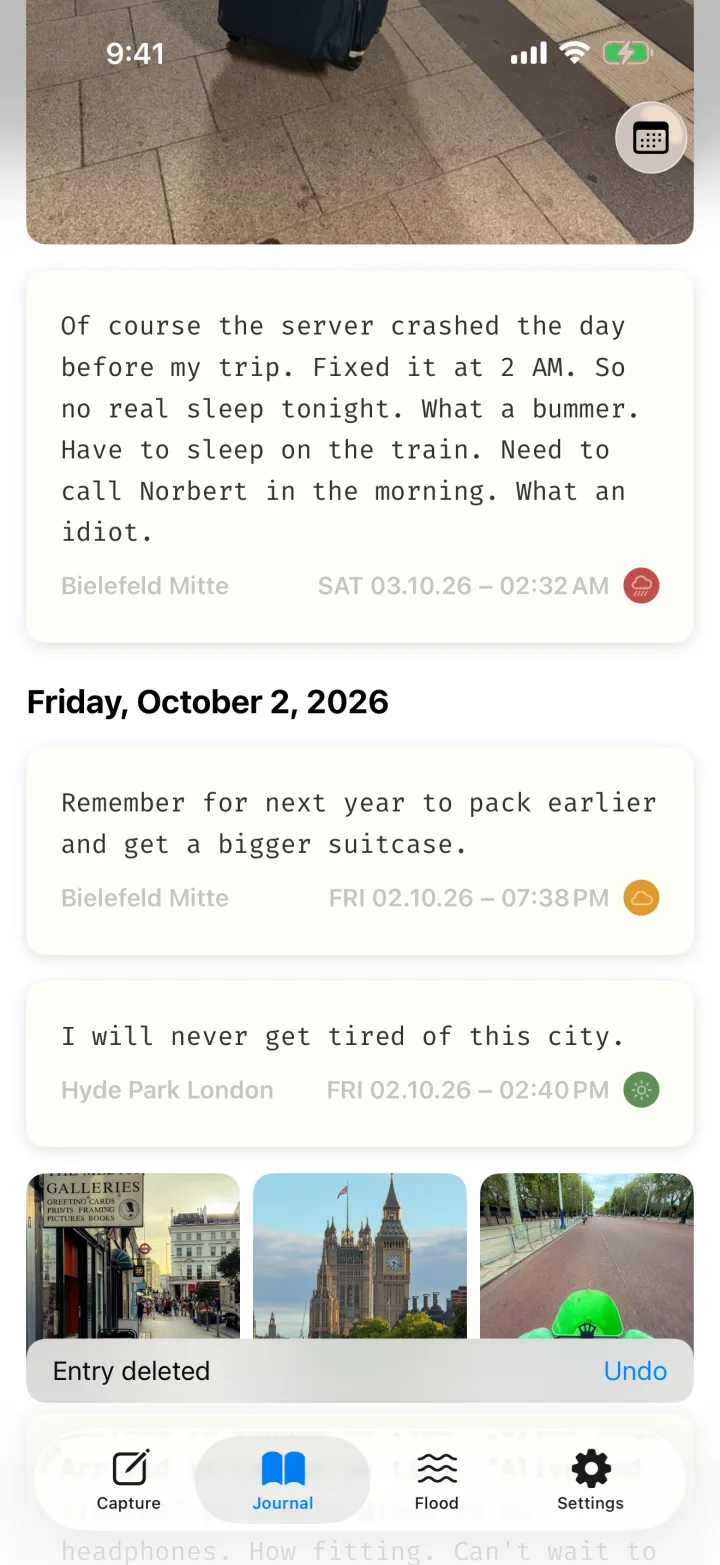
Touch and hold a card in the journal and choose Delete. For five seconds the bottom edge shows "Entry deleted" with Undo.
Deleted entries move to a trash and are removed for good after 30 days — on your other devices too, via iCloud. Version 1.0 has no view for the trash: once the five seconds have passed, an entry cannot be brought back inside the app.
Search
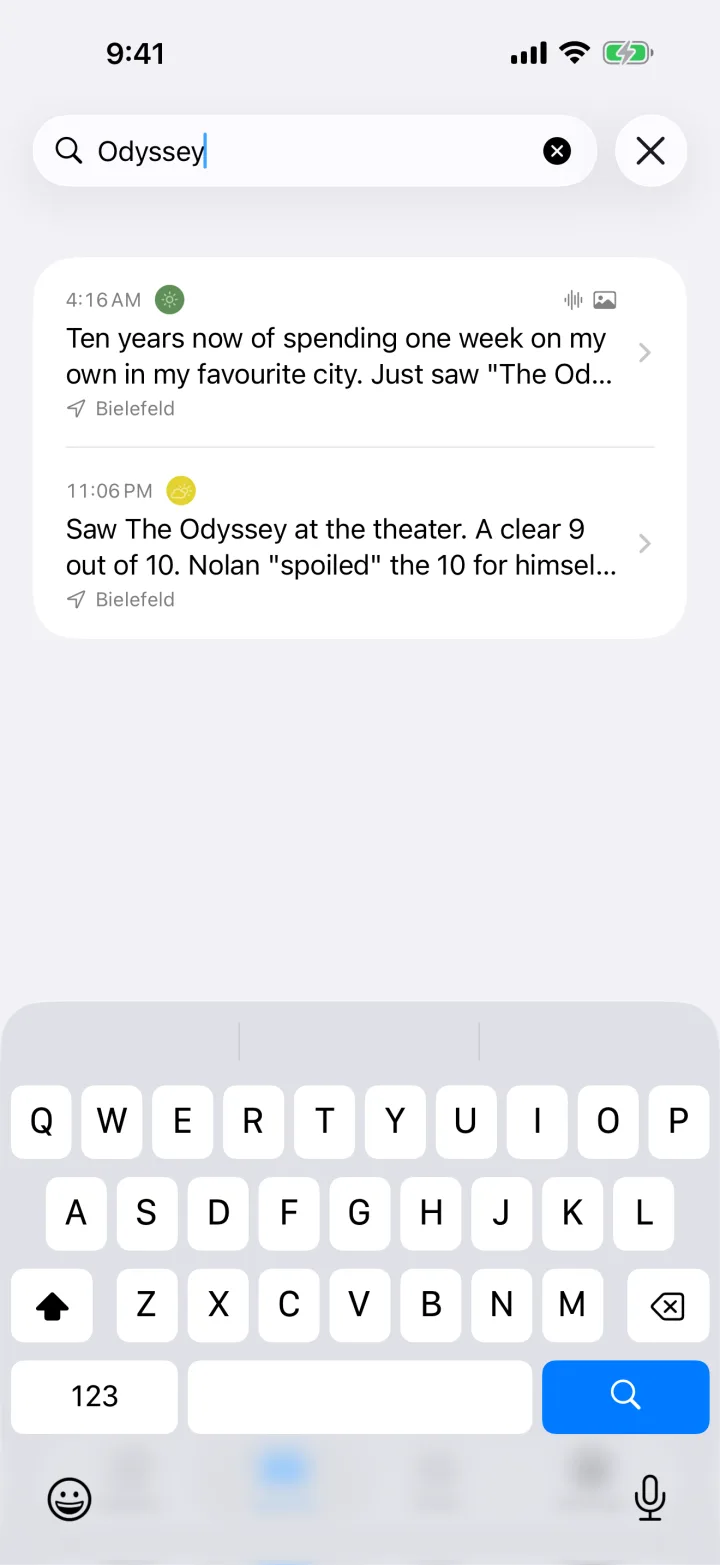
The search field sits above the journal. Search runs across the text of your entries and the transcripts of your voice notes — what you said is found just like what you typed.
Matches appear as a list, newest first, with time, mood dot, symbols for attachments and place. A tap opens the entry.
Photos, videos and the Flood are not searched.
Style and appearance
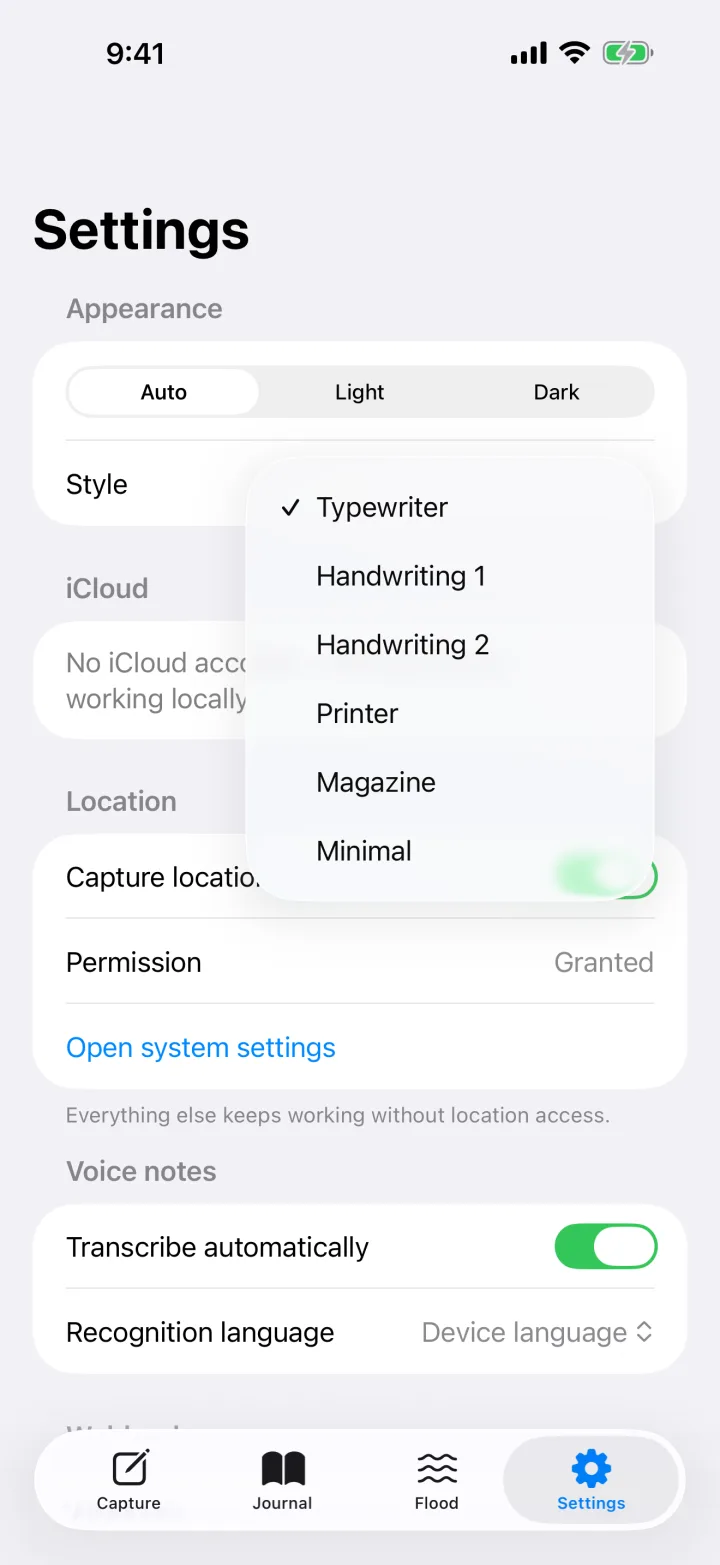
Under Settings → Appearance you choose the appearance (Auto, Light, Dark) and the style. The style sets face, paper color and ink — in the input field, the journal, the Flood and the detail view. You can switch at any time; your entries do not change.
Typewriter
What's happening? A second line to show the face.
Handwriting 1
What's happening? A second line to show the face.
Handwriting 2
What's happening? A second line to show the face.
Printer
What's happening? A second line to show the face.
Magazine
What's happening? A second line to show the face.
Minimal
What's happening? A second line to show the face.
In the dark appearance paper and ink trade places: the sheet takes the color of the ink, the type that of the paper. That goes for the input field as much as for the cards in the journal, the Flood and the detail view.
Settings
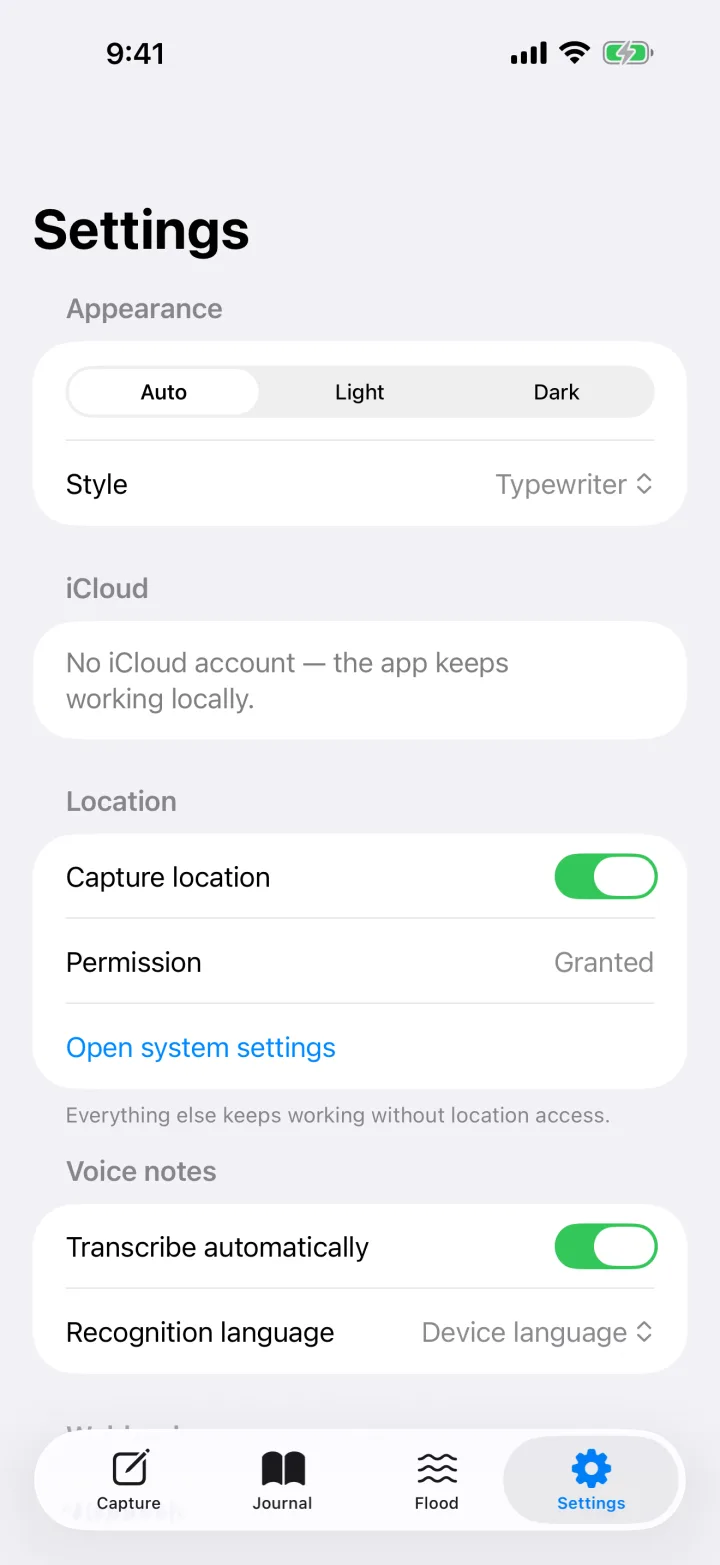
- Appearance
- Appearance and style — see Style and appearance.
- iCloud
- Shows whether sync is active and the time of the last change. Without an iCloud account it says that the app keeps working locally.
- Location
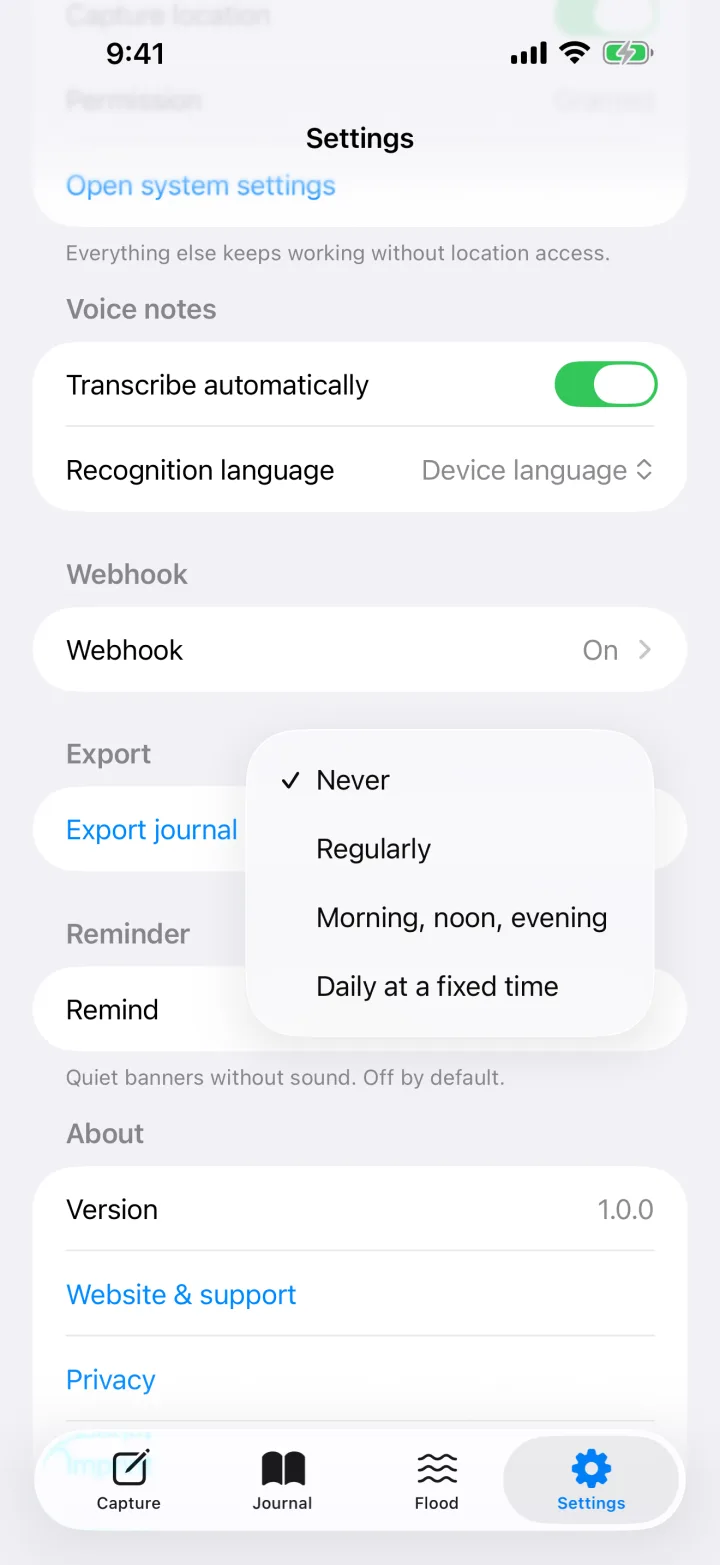
- Capture location switches the location search for new entries on or off. Below are the state of the permission and a shortcut into system settings.
- Voice notes
- Transcribe automatically is on by default. Recognition language: device language, Deutsch or English (US) — useful when you speak a language other than the one your iPhone is set to.
- Webhook
- Shows "On" or "Off" and leads to the setup — see Webhook.
- Export
- Export journal — see Export.
- Reminder
- See Reminders.
- About
- Version, website and support, privacy, imprint.
Reminders
Reminders are a quiet nudge you set yourself. They are off by default and always arrive as a silent banner without sound: "What's happening? One sentence is enough."
| Setting | When |
|---|---|
| Never | no reminder (the default) |
| Regularly | every 15 minutes, every hour, every 3 or every 6 hours |
| Morning, noon, evening | at 8:00, 12:00 and 19:00 |
| Daily at a fixed time | at a time of your choice, 20:00 by default |
The first time you switch one on, iOS asks for permission to send notifications. If you denied it, a note appears below the picker; you grant it in iOS Settings under Notifications. Your choice stays stored and takes effect as soon as notifications are allowed.
There are no streaks, no badges and no nagging when you ignore a reminder.
iCloud
If you are signed in to iCloud on the iPhone, morements syncs your entries and their media to the private database of your own iCloud account. The transfer happens between your device and Apple. We run no server and have no access.
Without an iCloud account the app works fully locally. That is not an error state: capture, journal, search, export and webhook work just the same.
Photos, videos and recordings take up space in your iCloud. You manage and delete data in your iCloud account in iOS Settings under iCloud → Manage Storage.
Export
Settings → Export → Export journal creates a ZIP file of your complete journal on the device and opens the share sheet. From there it goes wherever you send it: the Files app, AirDrop to a Mac, an email.
morements-export-….zip
├── entries.json      all entries in the documented format
└── media/            photos, videos and recordings
The file names in media/ match the fileName field of the attachments in entries.json. The file holds two lists: journal with the mood entries and flood with the flood notes, each in capture order. The structure of an entry is described under Data format.
Webhook
The webhook is for anyone who wants to build on their entries: an archive of their own, a database, an analysis. When it is on, morements posts every new entry as JSON to an address you enter yourself. It is off by default, and nobody but you decides where it goes.
Setting it up
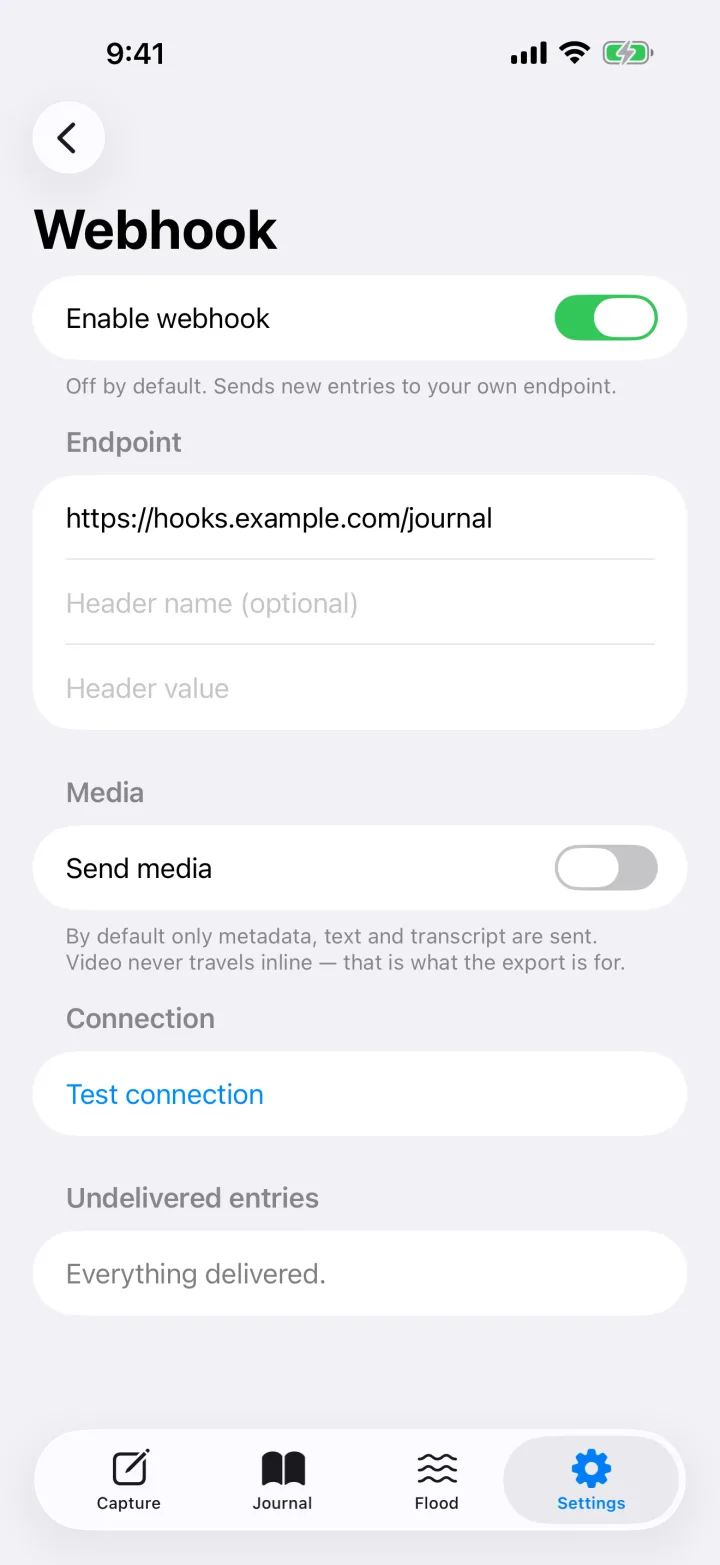
- Open Settings → Webhook.
- Enter the address under Endpoint. Only
httpsaddresses are accepted. - Optional: a header for authentication, for example the name
X-API-Keyand your key as the value. The value is kept in the iPhone's keychain. - Tap Test connection. morements sends a sample entry and shows the HTTP status and the start of the response.
- Switch on Enable webhook and confirm the notice.
Delivery
| Method | POST with Content-Type: application/json |
|---|---|
| Success | any response with a 2xx status; everything else counts as a failed attempt |
| Retry | three further attempts after 30 seconds, 5 minutes and 30 minutes; after that the entry is listed under Undelivered entries and can be pushed by hand with Send again |
| Duplicates | retries repeat the same entry.id — the receiver is responsible for deduplication |
| Ordering | not guaranteed; order by capturedAt, not by arrival |
| Deletions | are not sent; deleting is a local operation |
| Flood | flood notes arrive like any other entry, recognisable by mood.label == "flood" |
Media
By default only metadata, text and transcript travel — that keeps the request small. With Send media, photos and recordings are added base64-encoded, up to a size cap per entry (10 MB by default, adjustable from 1 to 50 MB). Anything beyond the cap is sent without data and marked "omitted": "size". Video never travels inline; that is what the export is for.
Once the webhook is on, your entries leave the device for the address you entered. We neither receive nor see this data. The destination and everything stored there is yours to look after — including deletion, because deletions in the app do not reach the webhook.
Receiving, for example with n8n
A Webhook node with method POST that responds immediately with 200 is enough. Answer before doing slow work — otherwise the request times out and triggers a pointless retry.
Data format
Webhook and export speak the same format, schema version 2. Anything built against one works with the other. The keys are English, whatever language the app runs in.
Envelope
{
  "schemaVersion": 2,
  "event": "entry.created",
  "sentAt": "2026-09-01T08:14:22Z",
  "source": {
    "app": "MOREMENTS",
    "appVersion": "1.0.0",
    "platform": "iOS",
    "deviceName": "iPhone"
  },
  "entry": { }
}
event is entry.created for a new entry, entry.test for "Test connection" and export in the export file. There, the two lists journal and flood take the place of entry. sentAt is the delivery time, not the capture time.
An entry
{
  "id": "9C7A4E2B-1F30-4A55-9E6D-4E5B2C8A11F7",
  "capturedAt": "2026-09-01T08:13:47Z",
  "capturedAtLocal": "2026-09-01T10:13:47+02:00",
  "timeZone": "Europe/Berlin",
  "text": "Erste Kaffeepause auf der Bank am Obersee. Enten sind unbeeindruckt.",
  "mood": { "value": 2, "scale": 4, "label": "good" },
  "location": {
    "latitude": 52.0302,
    "longitude": 8.5325,
    "accuracyMeters": 65.0,
    "placeName": "Obersee",
    "locality": "Bielefeld",
    "countryCode": "DE"
  },
  "attachments": [
    {
      "id": "1B4E9A70-77C2-4B0E-9F14-2D3A6C5E8B90",
      "kind": "audio",
      "fileName": "1B4E9A70.m4a",
      "mimeType": "audio/mp4",
      "byteCount": 184320,
      "durationSeconds": 23.4,
      "transcript": "Erste Kaffeepause auf der Bank am Obersee.",
      "transcriptState": "done",
      "data": null
    }
  ]
}| Field | Meaning |
|---|---|
id | UUID, stable. Use it to drop repeated deliveries. |
capturedAt | Capture time, ISO 8601 in UTC. The canonical timestamp. |
capturedAtLocal | The same moment with the offset that was in force at capture. |
timeZone | IANA identifier, for example Europe/Berlin. |
text | May be empty when the entry is voice- or media-only. |
mood.value | 0 to 3 on the mood scale, 4 for a flood note. |
mood.label | rough · meh · good · great · flood, always English. |
location | null when there was no location. Never assume it is present. |
attachments[].kind | photo · video · audio |
attachments[].transcript | Audio only; may be null. |
attachments[].transcriptState | na · pending · done · failed |
attachments[].data | base64, or null while "Send media" is off. |
Transcription is often not finished when an entry is saved. An entry can therefore arrive with transcript: null and transcriptState: "pending". Trust transcriptState — a missing transcript does not mean nothing was said.
Permissions
Every permission is optional. The app stays usable without it.
| Permission | What it is used for | If you deny it |
|---|---|---|
| Microphone | recording voice notes | no voice notes, everything else works |
| Speech recognition | on-device transcription of your recordings | recordings are kept without a transcript |
| Location (while in use) | noting where an entry was made | entries are saved without a location |
| Camera / photo library | attaching photos and video | no media attachments |
| Notifications | the reminders you schedule yourself | no reminders |
Speech recognition runs on the device. Recordings are not sent to Apple or to us for transcription. Everything else is in the privacy policy.
Questions and answers
The check mark stays grey.
Either the content or the mood is missing. Once there is text, a recording or an attachment and one of the four moods is picked, the check mark turns blue.
The flood button stays grey.
The draft has a line break, an attachment or a recording in progress. A flood note is a single line of text and nothing else.
The top right says "no location".
Location access is missing, or Capture location is switched off. Both are under Settings → Location. Entries are saved regardless.
A voice note has no transcript.
If it says "Transcribing …", recognition is still running; it resumes the next time the app starts. If it says "Transcription failed", the device could not convert the recording — for instance because speech recognition is not allowed or the language does not match the recording. The recording itself is always kept. You set the language under Settings → Voice notes.
The reminders do not arrive.
Check that Settings → Reminder is set to something other than "Never" and that notifications for morements are allowed in iOS Settings. Reminders are silent banners — a Focus mode can hold them back.
I deleted an entry by mistake.
Within five seconds Undo brings it back. After that, version 1.0 offers no way back inside the app.
Can I change time, place or mood afterwards?
No. Only the text can be edited.
Is there a version for iPad and Mac?
Version 1.0 ships for the iPhone. iPad and Mac are coming soon as a free update.
Something else?
Write to support@markus-freise.de. It helps to include the version from Settings → About, your iPhone model and the iOS version.